Wait, what exactly is Grok Bot? A beginner's guide
A practical, personal guide to Grok Bot: what it is, how to start, what it costs, and what you can do from your phone, with a first task and safety tips.
Grok Bot 101: a thorough guide for people who already use ChatGPT, Claude, Gemini and friends, and want to know how to start working with a team of shluchim.
By Seffy Fisher · Fact checked and updated October 12, 2026
I talk here quite a bit about a shaliach checking data, Kochava building a website, and a team working while I try to catch my kid at the beach. Then I realized I’d skipped something fairly basic.
What even is this thing? Where does it live? Do you need to install something on your computer? And how is it different from opening another chat with ChatGPT, Claude or Gemini?
Let’s start at the beginning. Grok Bot is a product where you create persistent AI assistants and give them work.
They have a shared computer in the cloud, a browser and files, and they can work with tools you’ve connected. I call these assistants shluchim (singular: shaliach, Hebrew for emissary).
It fits them better, to my ear, than “agents” (the suited guys from The Matrix) or “bots” (how are they different from robots? Just no hands?).
I’m talking about Grok Bot here, not the regular Grok chat. (I wouldn’t read too much into “Bot”; it’s probably xAI’s way of setting it apart from the increasingly tiresome word “Agent.”)
If you’d rather see what it looks like first, watch the official introduction video, then come back.
Original Pinch, double-tap or scroll over the image to zoom. Drag to move.
An illustration of my team. The real interface appears in the screenshots below.
Already have the general idea and want to jump to something specific?
- What’s different about working with a shaliach
- The cloud computer and working from your phone
- Getting started and what it costs
- Your first task
- From one assistant to a team
- A two-day experiment
- Permissions and privacy
- Frequently asked questions
Who do you send the work to?
Most of us are used to working with AI like this: open a chat, ask for something, get an answer. Tomorrow, open another chat and explain it all again. A month later, you have a heap of conversations you’ve forgotten about.
With Grok Bot, I started working differently. I made permanent assistants with names and roles, and I go back to each one with the work that belongs to them. Mine are called shluchim.
When I need software or a website built, I know whom to ask. Same for design, marketing and campaigns. Tighten a piece of writing? An ad campaign? Dinner ideas? It’s like knowing who handles what at work, except the message goes to a shaliach.
Other tools can work with memory and agents too these days. I’m describing how I use Grok Bot, and what clicked for me about it.
I didn’t plan to get excited about an Elon Musk product
Honestly, it took me a few weeks to decide to download it at all. The thought of paying Elon Musk wasn’t exactly speeding me along.
I’d tried plenty of AI tools before, including ones that demanded far more technical tinkering.
Here, something about how the product is put together just made sense to me. Talking to the assistants felt natural, like sending a WhatsApp message.
I’m still not an Elon Musk fan. But I am a fan of this product (from the Cursor AKA xAI AKA Grok team; perhaps they’ll settle on one name for the whole thing someday, for crying out loud).
Hang on, whose computer is this?
They have a computer in the cloud. An actual computer, with a browser and files, where they can work. The shluchim share that computer, and each can have their own screens.
It’s a remote Linux computer. It isn’t my Mac, and my personal computer doesn’t need to stay on for them to work. Access to your personal computer, if you connect it, is separate. There’s an official explanation of the computer and apps if you want the details.
(And this isn’t a toy computer. At any moment you can open it and do the kinds of things you’d do on a computer, subject to compatibility and permissions.
You can even open Grok Bot inside Grok Bot’s computer. Grok Bot inside Grok Bot. A screenshot explains that better than another paragraph.
For example, I’ve used the blog to take screenshots of Grok Bot’s UI through the computer running Grok Bot, or tried installing the CLI for other AI tools such as Codex or Claude Code.)
Original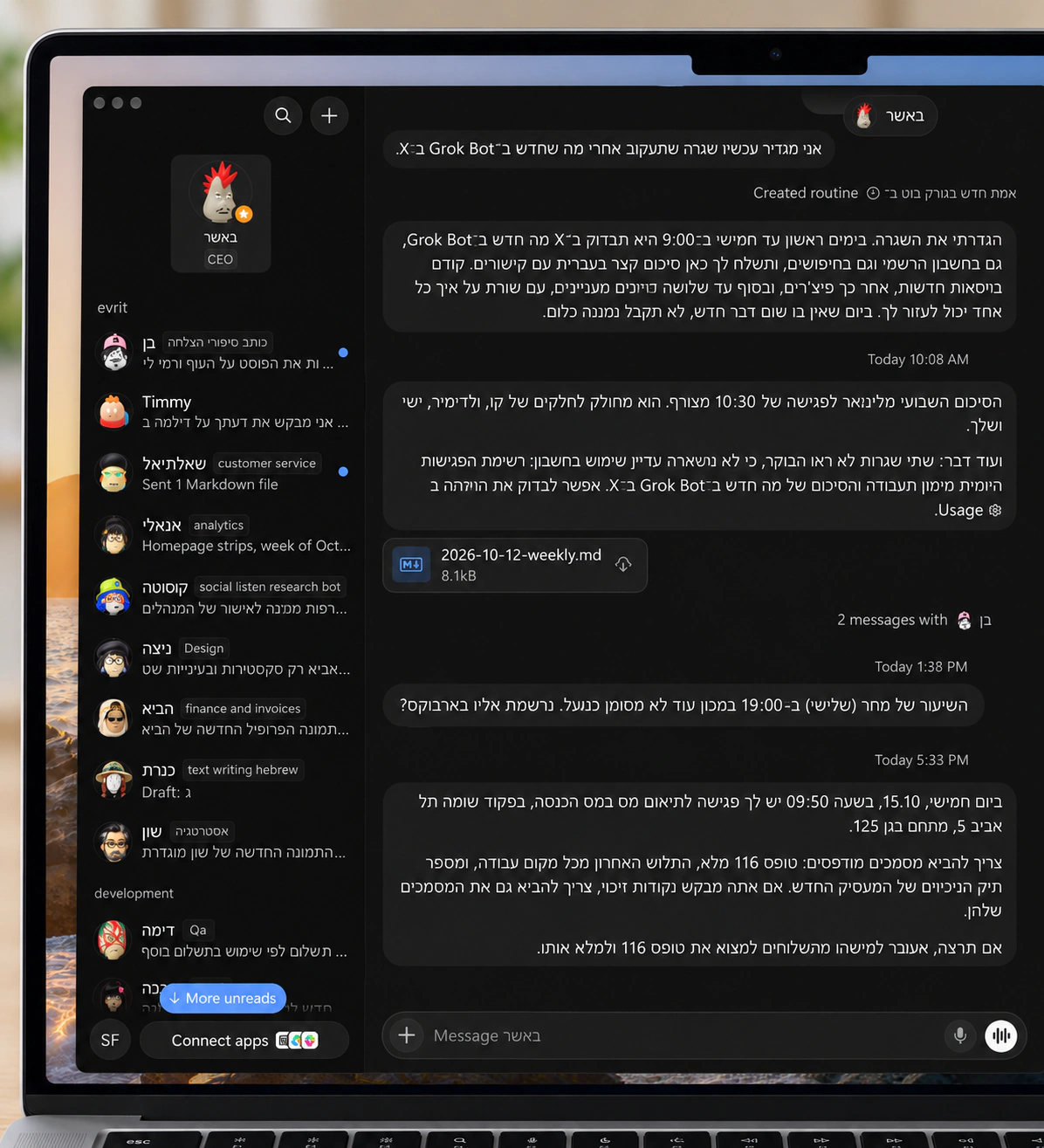 Pinch, double-tap or scroll over the image to zoom. Drag to move.
My Grok Bot interface: the shluchim list and a Hebrew chat with Basher, shown in a MacBook Pro mockup. About Grok Bot: xAI
My office in my pocket
That means I can send a message or voice note from my phone, and on the other end a shaliach can open a site in their browser, work on a file or check something, then come back with a result.
I can also ask for a screenshot and see what they’re doing. Work in the cloud can keep going after I close the phone app.
Here’s the guide to working on mobile.
I do about 80% of my work with them from my phone. Including things I used to put off until I reached my computer. The story about the analytics problem I handled from the beach is a good example.
Original Pinch, double-tap or scroll over the image to zoom. Drag to move.
My office in my pocket. An illustration of working from a phone with the cloud computer.
Come on, just talk normally
When I need a website, I turn to a shaliach who does development. For design, I go to the designer. For a campaign check, I ask the one who knows marketing and ads.
Explain what you want to happen, give them the material you have, and answer their questions. Sometimes you need a correction, sometimes an example, and sometimes the work isn’t great and you need another round. And another. And another.
You don’t need to know in advance which tool they’ll use for every step. You can start with the problem itself and work out an approach together.
And when they don’t have access to something, you need to connect it. When they get stuck, you need to find out why.
The cloud computer doesn’t give them a free pass into every system on earth, but it can reach a lot when permission is granted and the system is compatible.
Yes, even that boring document
You can start with a morning brief from email and calendar, when you’ve approved access: what’s coming up, what’s urgent and what needs a decision.
Or give an assistant a data file and ask for an analysis and a new summary file, without changing the original.
The files and results guide explains how material goes in and how to get the work back.
For a real example, read how Kochava built this blog. It starts with an ordinary request and ends with something you can open and use.
The official use-case collection has more ideas for a first task that fits your life.
Peter Yang’s guide to five uses may spark ideas too: YouTube research, finding content on X, working with email and planning travel. Pick one task from it that actually matters to you.
How do you start, and why does it say Cursor?
For installation and sign-in, follow the official getting-started guide. You can start on a computer or a phone. When creating an assistant, give it a name, a role and a short description of how you want it to work. No need to write a novel.
From my own screen recording:
Original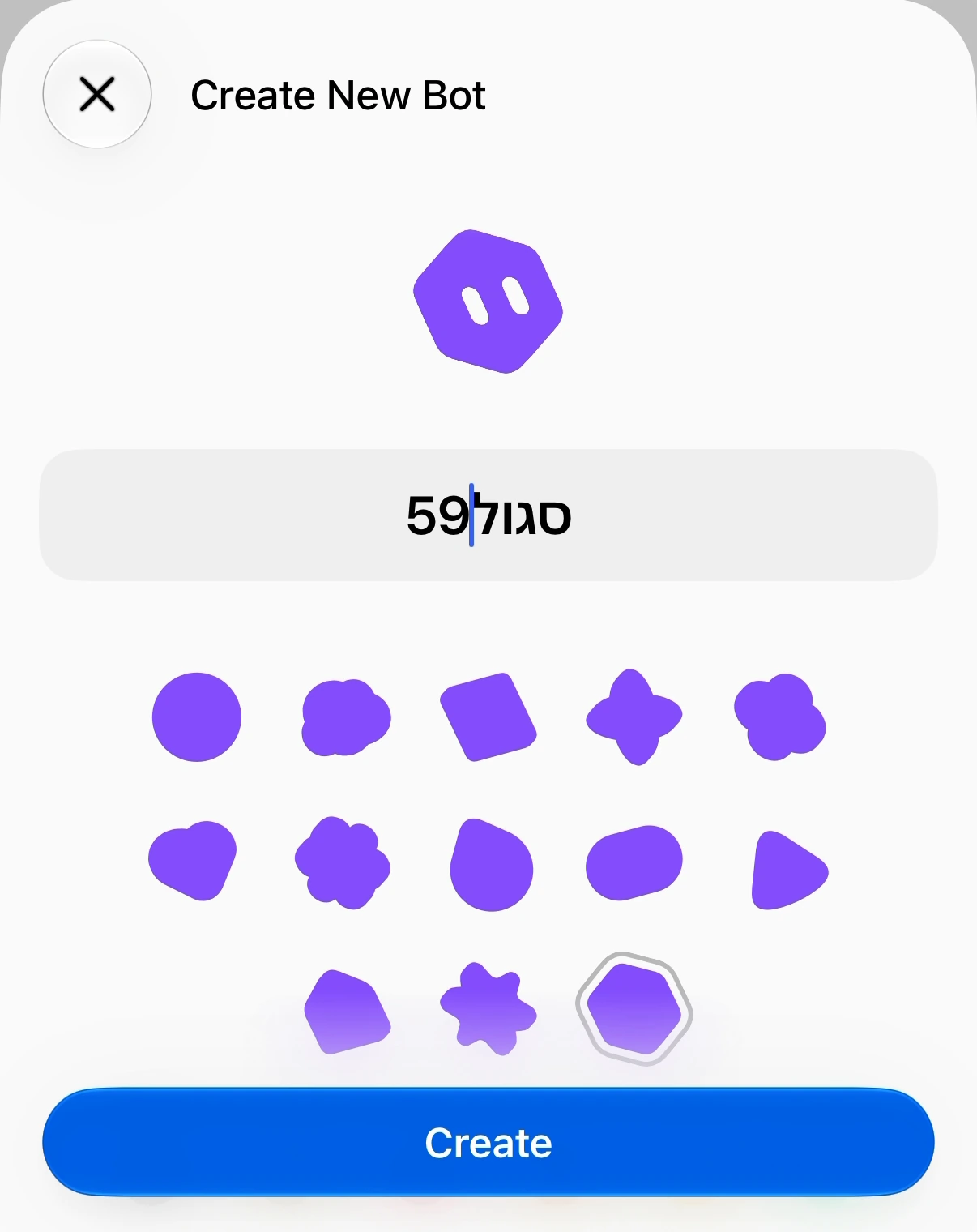 Pinch, double-tap or scroll over the image to zoom. Drag to move.
Give the shaliach a name and choose an avatar. Then tap Create.
Original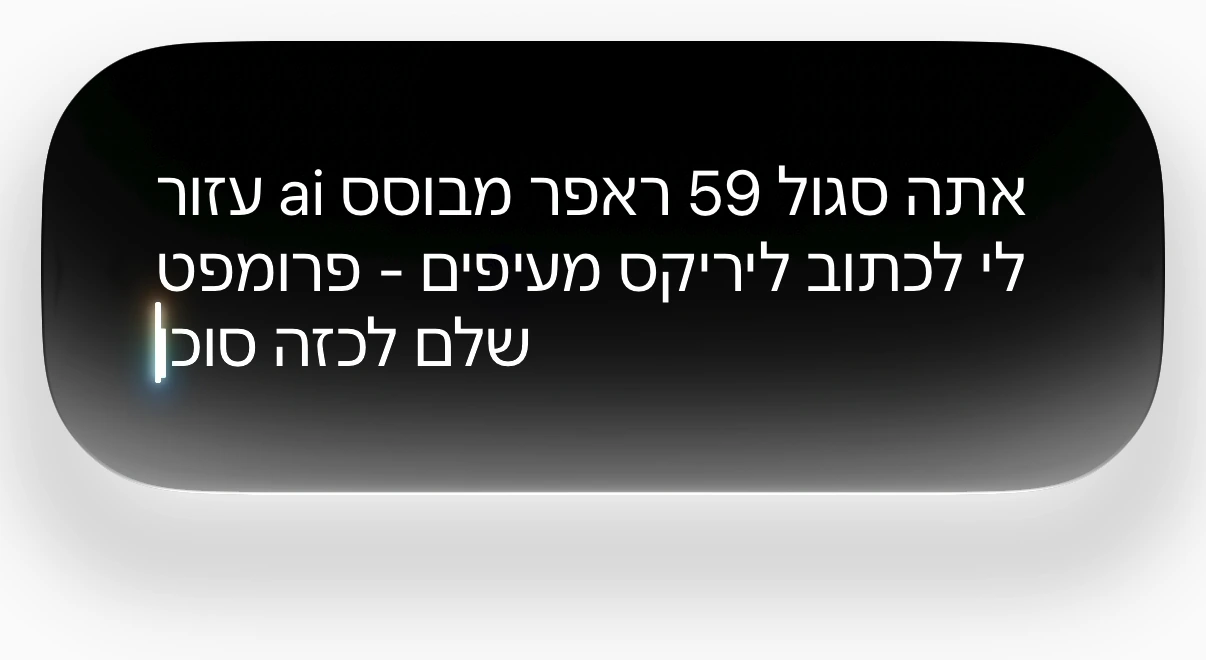 Pinch, double-tap or scroll over the image to zoom. Drag to move.
Optional for Apple users: ask Siri to draft organized instructions. You can write them yourself too.
Original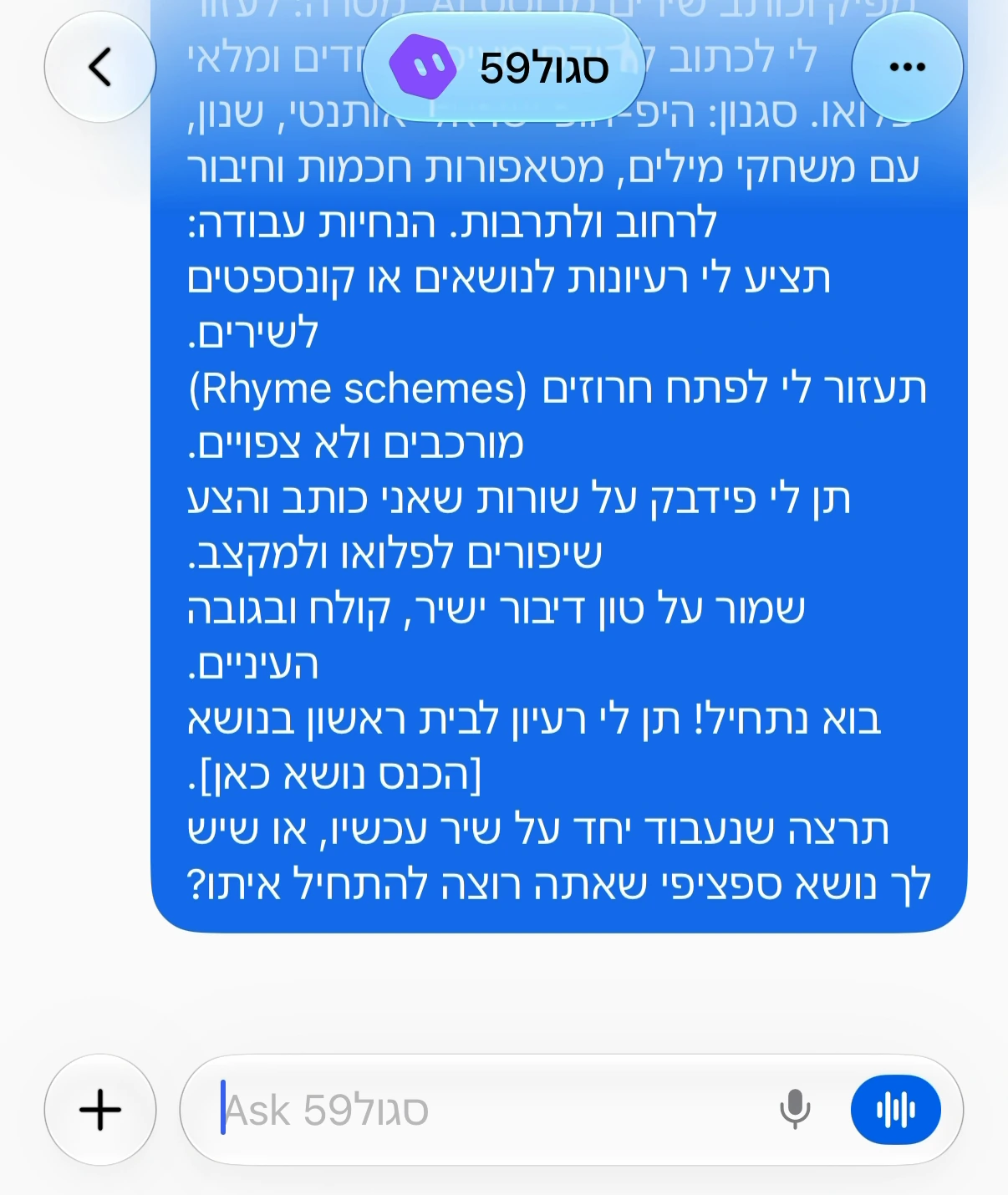 Pinch, double-tap or scroll over the image to zoom. Drag to move.
Paste the instructions and send them in the chat with your shaliach.
Subscriptions are a little confusing, so here’s the short version as of October 12, 2026: paid Cursor plans include access to Grok Bot. The listed monthly prices, before tax, are $20 for Pro, $60 for Pro+ and $200 for Ultra. The amount of usage is part of the difference.
Before you pay twice
If you already have an eligible SuperGrok subscription, you can link it instead of buying another subscription just for this.
Linking gives you a Grok Bot usage allowance in your Cursor account; it doesn’t turn it into a paid Cursor subscription. Allowances from two subscriptions don’t stack either.
Here’s the precise explanation of plans and linking. Make sure you link the right account, because you can’t move the link later.
Before you start running lots of work, check the usage screen too. There’s a weekly allowance, and extra usage may cost money if you’ve turned it on. Lots of shluchim and lots of tasks do not mean unlimited work.
Is it really that simple?
Create one personal assistant. Give them a name, tell them what you do and what you’re trying to get done. You don’t have to begin by connecting your work email.
A short demonstration, in Hebrew, of setting up a bot from a phone and entering instructions. Siri is optional for Apple users; you can type the instructions directly. The video shows setup, not a completed task.
- Choose a non-sensitive document that you’re allowed to share and attach it to the chat.
- Ask for a short summary, a list of decisions and open questions, with a reference to the page or section each point came from.
- Ask the assistant to leave the original file untouched and not send it to anyone.
- Check the result against the document. If something is missing or wrong, point it out and ask for a correction.
Original Pinch, double-tap or scroll over the image to zoom. Drag to move.
An illustration of a first task: check the summary against the original document.
That’s it. You have a first piece of work you can actually check. Later, you can ask the assistant to compare sources, work on a draft or create a file. Say what a great result would look like; don’t leave them guessing.
Don’t open an office on day one
I know my gallery of shluchim already looks like a law firm with three surnames on the door. I wouldn’t start there.
Later, when a field of work keeps coming up, you can give it a shaliach of its own. Design, development, marketing, whatever fits.
And you can keep the personal assistant as team leader, the “CEO” (captain, admiral, big boss or, in my case, “Basher”).
They collect your requests and pass work to the right shluchim. That way you have one place to go, even as the team grows.
Just don’t confuse separate roles with separate permissions. Different names and screens don’t create isolated computers. Think about what you’re sharing with this team before connecting work material to it.
This matters for information security: there’s one computer, shared by all the shluchim in the account. The files, browser logins and credentials saved in command-line tools are shared.
Each shaliach can have their own screen, a bit like a virtual desktop on a Mac or Windows machine, so they can work in parallel across windows and screens.
That doesn’t make them isolated computers; permissions for each action and tool still depend on your connections and settings.
Original Pinch, double-tap or scroll over the image to zoom. Drag to move.
Separate screens, one shared computer. An illustration, not a screenshot of the interface.
Who can explain all this?
If terms such as memory, connections and routines start to tangle together, Nate Herk’s guide to Grok Bot concepts sorts them out. You don’t need to learn it all before giving your first task.
If you want people to follow on X, you could start with Matt Palmer, Peng Zheng, who leads design, and Lauren Tan, an engineer on the team.
You can also hear the latter two in Peter Yang’s conversation about the assistants they build and use.
Okay, what are you doing now?
The hard part at first is noticing where they could help. We’re so used to doing things ourselves that we don’t even think of handing them over.
I got this idea from someone who works on bringing AI into organizations: instead of explaining for ages, take a screenshot of what you’re doing on your computer or phone right now and begin with, “Help me, I’m trying to…”
Let them ask you for two days
Here’s a message you can copy to your personal assistant. Try it on two workdays, at hours that suit you:
First ask me which two upcoming days I’ll be working, what hours I work on those days, and my time zone. After I answer, set a reminder every three hours within my working hours on those two days only.
Ask me: “What are you doing right now? Send me a screenshot of the work you’re doing on your computer, or describe it, and let’s see how I can help.”
After I reply, suggest one concrete thing you can do to move that work forward. If you need information, ask.
Before sending anything to someone else, publishing, buying something or making a significant change, ask for my approval.
Confirm which reminders you set, on which days and at what times, and that they won’t continue after those two days.
These are Routines: you ask in chat what should happen and when, then check that the times were saved correctly. They use your allowance too, so there’s no need to start with a reminder every five minutes.
Original Pinch, double-tap or scroll over the image to zoom. Drag to move.
Two workdays, a reminder every three hours, and one concrete task at a time. An illustration.
Show them what you’re working on
When the reminder arrives, just answer. If your computer is open and you’re in the middle of work, take a screenshot and send it to your shaliach: “This is what I’m doing now. How can you help?” You can work with them from the desktop app or your phone.
Leaving the computer and app open alongside your work makes it easy to show what’s happening, while they work on their own cloud computer. Even if you’re doing something small or dull, that’s a good time to try.
Remember that they may be able to use their cloud computer, a local computer you’ve connected and approved, and tools you’ve connected, such as Google Calendar, while chatting with you. What can run in parallel depends on the task and the access available.
Before someone steals your underwear
Before sending a screenshot, hide passwords, personal details and anything you aren’t allowed to share. Don’t paste passwords into the chat. Use the product’s secure sign-in flow, and sign in yourself when needed. Just tell the assistant that you need to log in.
If a connection supports a secure request for a key or other secret, use the dedicated form. In other cases, you’ll need to take control and sign in yourself.
Decide in advance where the shaliach must stop for approval, especially before sending something out, publishing, buying or changing a live system.
The approvals and privacy guide is worth a few minutes before you connect accounts. On a work account, follow your organization’s rules.
Original Pinch, double-tap or scroll over the image to zoom. Drag to move.
Pause, hide sensitive information and review before sending or publishing. An illustration.
The shaliach finished. Now check the work.
Even after all that, check the result. Does the link open? Is that number really in the source? Is the file intact? Sometimes the quality isn’t there, and sometimes a big task just needs more work.
Give it two days of real tasks. See what they can take off your hands, what needs more explanation and what you still prefer doing yourself.
Then it becomes much easier to see why I’m so excited about this whole thing. :)
Frequently asked questions about Grok Bot
Do I need to know how to code?
Not to start with summarizing a document, doing research or organizing information. You do need to explain what you want and check whether the result is good.
If you ask it to write code or change a system, someone who can review that work needs to be involved too.
Mostly, you need to know what you want. What you really want, not roughly. Come prepared: know exactly what you’re trying to do, and have a sense of how the result should look, feel and work.
Can I use an iPhone or Android phone?
Yes. There are apps for both, with the same account and cloud computer. You can hand over work and check results; some advanced management features still need the desktop app.
You can assign work to the cloud computer from your phone, but not every management option is available there.
The mobile guide has the latest details.
Do I have to leave my personal computer on?
Not for cloud work. If the task depends on your personal computer or a file stored only there, you need to set up access and leave it available. Here’s how the two computers are separated.
I already pay for Cursor or SuperGrok. Do I need to pay again?
Not necessarily. First check whether your plan includes access and how to sign in or link it. Linking doesn’t cancel another subscription or combine your allowances. Here are the current access plans.
What happens when I run out of usage?
If paid extra usage is off, work stops until your allowance resets. If it’s on, you may be charged more. Note that a spending cap doesn’t necessarily stop a task that’s already running halfway through. The billing guide explains it.
One last tip: Dan the Saver
Add a shaliach named “Dan the Saver.” Set him to run once a week and recommend changes to your shluchim and Routines that could save a lot of tokens. For example, move tasks that don’t need AI to fixed scripts, and look for other ways to save tokens.
The recommendations come to you for review; changes to shluchim and Routines happen only after you approve them.
More on that in future installments of “Frugal and Happy #2.”
Thanks. That was long even by my standards. If you made it this far, please, please leave me feedback below. It’s free, and it makes me smile to know I’m not talking to myself.